How to scan documents on Android
Install PDF Scanner from Google Play for the best Android experience—or scan in Chrome at pdfscan.online when you prefer the browser.
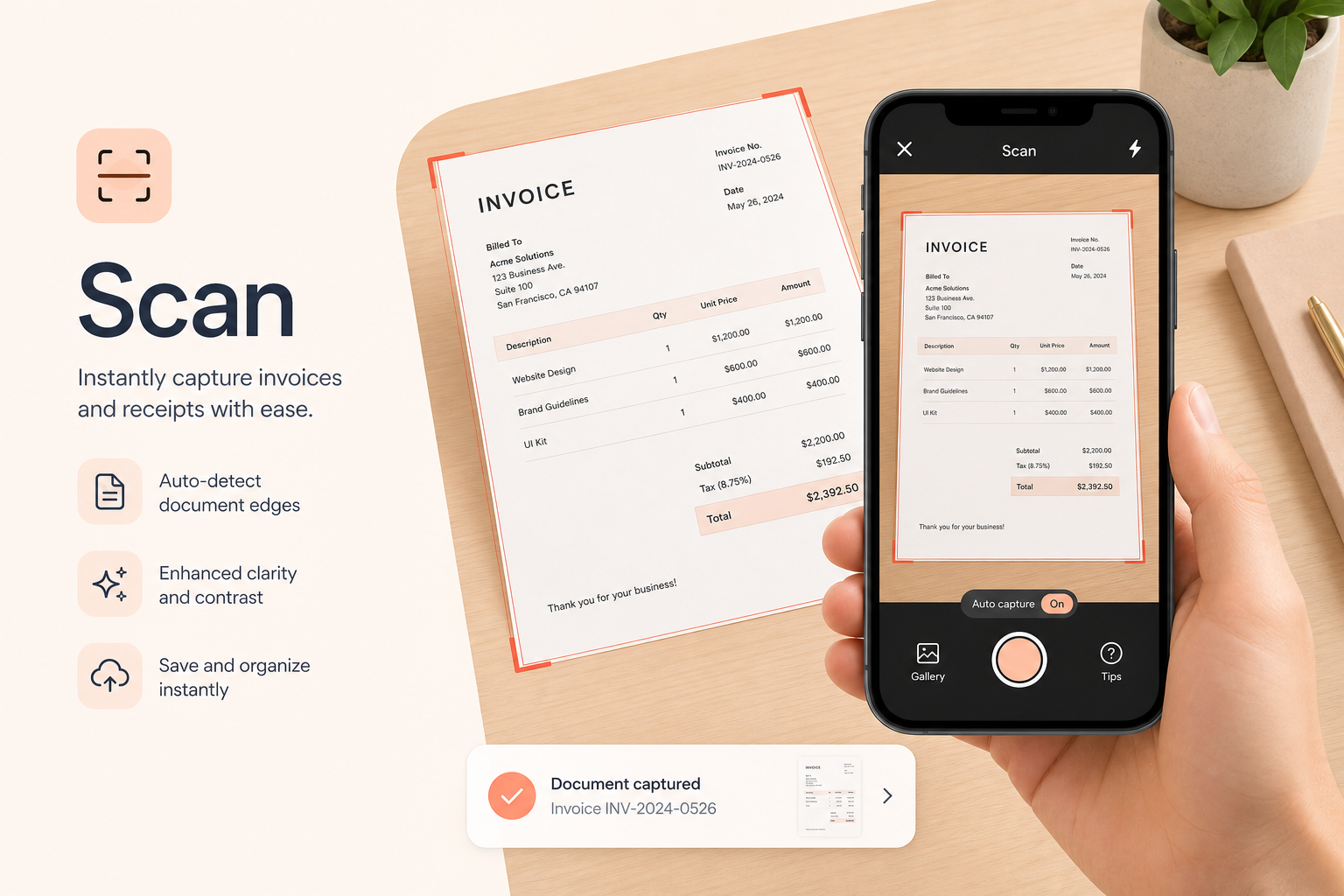
Best option: the PDF Scanner Android app
For regular scanning on Android, install our native PDF Scanner app from Google Play (package com.everline.pdfscanner, by Everline Technologies). You get a document- and ID-ready camera flow, multi-page PDFs, editing tools, and a privacy-first workflow without depending on a browser tab.
Install once, then digitize receipts, forms, homework, and contracts whenever you need a clean PDF. The Play Store app is the recommended experience on Android; the web scanner at pdfscan.online is still there if you want a no-install option.
Get it here: https://play.google.com/store/apps/details?id=com.everline.pdfscanner
- Install PDF Scanner from Google Play
- Allow camera permission when prompted
- Capture pages, enhance, and save a multi-page PDF
- Edit, run OCR, and share from the same app
Scanning paperwork from an Android phone
Android phones are often the only camera nearby when a form, receipt stack, or signed letter needs to become a PDF. A good phone scan should look like a document, not a tilted Gallery photo—steady framing, sensible light, and a real PDF export.
PDF Scanner keeps that workflow under your control: capture on the device, finish the PDF, then share only when you choose. That fits rentals, job paperwork, school packets, and bank letters that travel with you.
Step-by-step in the Android app
Open PDF Scanner after installing from Google Play. Start a document or ID scan and allow camera access. Prefer the rear camera for paper. Lay the sheet flat on a contrasting surface and hold the phone parallel so margins look even in the preview.
Tap to focus on the text if the preview looks soft, then capture. Crop table edges and thumbs, enhance when ink looks faded, add the next page for multi-page packs, and save the PDF.
Already have photos in Gallery? Import them and convert to PDF instead of reshooting. Reorder pages if needed so the file matches the original packet.
- Install from Google Play and open PDF Scanner
- Use the rear camera, parallel framing, and even light
- Crop, enhance if needed, add pages, then save
- Import Gallery photos when you do not need a reshoot
Alternative: scan in Chrome (no install)
Prefer not to install an app? Open pdfscan.online in Chrome, start the document scanner, and allow camera permission for the site. Capture, crop, enhance, and download—processing runs in the browser on your device.
The website is useful for one-off scans or shared devices. For everyday Android scanning, the Google Play app is quicker to reopen and better as your default scanner.
Permissions, lighting, and clearer scans
If the camera preview stays black in the app or browser, check Android’s app permissions for PDF Scanner (or Chrome) and allow Camera. Reload after changing permissions. Low storage can block saving large multi-page PDFs—free space if saves fail.
Wipe the rear lens, kill glare on glossy invoices, and tap to focus on text. Avoid digital zoom; move closer instead. Retake soft pages—filters cannot restore lost sharpness.
- Confirm camera permission for the app (or Chrome)
- Wipe the rear lens before detailed pages
- Tap to focus on text, not empty margins
- Keep distance consistent across multi-page sets
What to do with the PDF after you save
Open the file to confirm every page is upright, then share or file it where your recipient expects. Rename with a date and topic so it is easy to find later.
For expenses or archives, use OCR so amounts and names become searchable. Delete duplicate Gallery shots once the PDF is saved if you no longer need the originals.
Frequently asked questions
Where do I get the PDF Scanner Android app?
Install PDF Scanner from Google Play: https://play.google.com/store/apps/details?id=com.everline.pdfscanner (by Everline Technologies).
Can I scan on Android without installing an app?
Yes. Use pdfscan.online in Chrome for browser-based scanning. For everyday use, we recommend the Google Play app.
Why can’t the app or site access my camera?
Open Android Settings → Apps → PDF Scanner (or Chrome) → Permissions and allow Camera. Reload and try again. A black preview usually means permission was denied.
Are my Android scans uploaded to a server?
PDF Scanner is designed so capture and core processing stay on your device whenever possible. You share the finished PDF only when you choose to.