How to scan documents on iPhone
The easiest path: install PDF Scanner from the App Store. Prefer the browser? Use pdfscan.online in Safari—same privacy-first scanning to PDF.
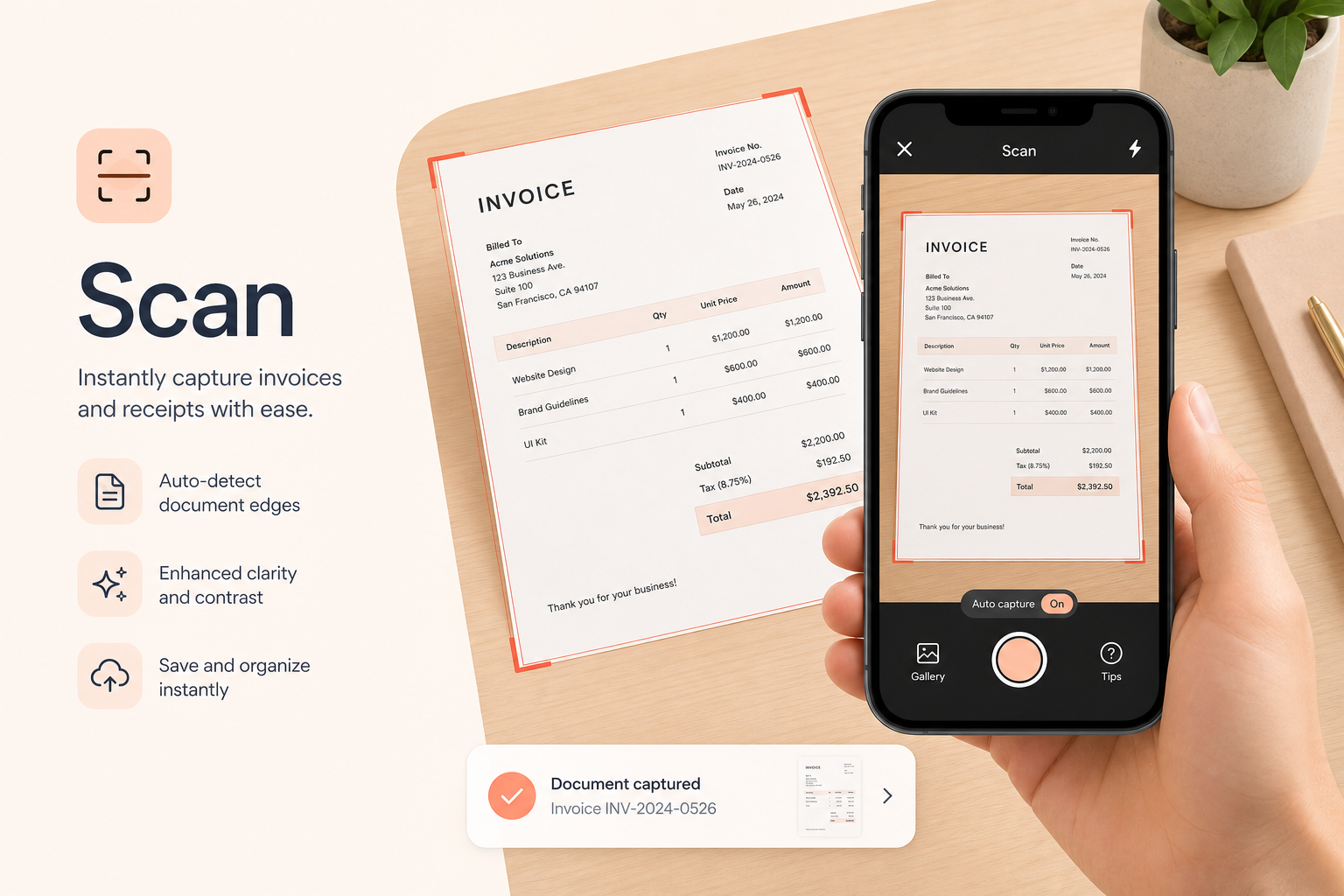
Best option: the PDF Scanner iPhone app
For day-to-day scanning on iPhone, use our native PDF Scanner app from the App Store (PDF Scanner — Editor & Viewer by Everline Technologies). You get a camera workflow built for documents and IDs, multi-page PDFs, editing tools, and the same privacy-minded approach as the website—without relying on a browser tab.
Install once, then scan receipts, homework, contracts, and forms whenever you need a clean PDF. The app is the recommended experience on iPhone; the web scanner at pdfscan.online remains available if you prefer not to install anything.
Get it here: https://apps.apple.com/us/app/pdf-scanner-editor-viewer/id6777173458
- Download PDF Scanner from the App Store
- Allow camera access when prompted
- Capture pages, enhance, and save a multi-page PDF
- Edit, OCR, and share from the same app
Why scan on iPhone instead of a flatbed
Most paperwork that needs a PDF today never reaches a desk scanner. Leases, school forms, signed letters, and insurance pages show up when you are already holding an iPhone. A dedicated scanner app—or a quick browser scan—beats a messy Photos album with no crop or page order.
With PDF Scanner, capture and PDF creation stay under your control. You decide whether the finished file goes to Files, Mail, AirDrop, or iCloud Drive you manage—without treating “upload to convert” as the default.
Step-by-step in the iPhone app
Open PDF Scanner after installing from the App Store. Start a document or ID scan and allow camera access. Place the page on a flat surface with a contrasting background—dark table under white paper is easier to frame than a busy patterned cloth.
Hold the iPhone roughly parallel to the page so text stays upright. Fill the frame without cutting off corners, capture, then review. Crop away table edges, enhance if the page looks gray, add more pages for a multi-page PDF, and save.
If someone already texted you photos of a form, import them from Photos and convert to PDF instead of reshooting. Keep lighting consistent across a pack so the file looks even when opened on a laptop.
- Install from the App Store and open PDF Scanner
- Frame with even light and parallel phone orientation
- Crop, enhance if needed, then save the PDF
- Import existing Photos when you do not need a new capture
Alternative: scan in Safari (no install)
Prefer not to install an app? Open pdfscan.online in Safari, start the document scanner, and allow camera access for the site. Capture, crop, enhance, and download—processing runs in the browser on your device.
The website is ideal for one-off scans on a borrowed phone or when you already have the site bookmarked. For regular iPhone scanning, the App Store app is faster to reopen and better suited as your default tool.
iPhone lighting and framing tips
Soft, even light beats a bright window behind you. Glossy or laminated pages reflect the screen—tilt until the hot spot leaves the text. Avoid digital zoom; move closer instead.
Brace your elbows, pause after focus locks, then capture. Retake soft pages rather than stretching a blurry image later—enhancement cannot invent missing detail.
- Prefer even overhead light over backlit windows
- Reduce glare on glossy pages before capturing
- Stay parallel to the page; avoid extreme angles
- Retake soft shots—do not rely on crop alone to fix blur
After the scan: share, file, or OCR
Save or share the PDF from the app—AirDrop, Mail, Files, or your usual folder. Rename with a date and topic so you can find it later.
Need searchable text? Use OCR in PDF Scanner so you can find clauses or copy amounts later. Image-only scans are fine for quick filing; searchable scans are better for archives.
Frequently asked questions
Where do I get the PDF Scanner iPhone app?
Download PDF Scanner — Editor & Viewer from the App Store: https://apps.apple.com/us/app/pdf-scanner-editor-viewer/id6777173458 (by Everline Technologies).
Can I scan on iPhone without installing an app?
Yes. Use pdfscan.online in Safari for browser-based scanning. For everyday use, we recommend the App Store app.
Do my scanned pages get uploaded?
PDF Scanner is designed so capture and core processing stay on your device whenever possible. You share the finished PDF only when you choose to.
How do I scan multiple pages into one PDF on iPhone?
In the app (or on the web scanner), capture the first page, then add the next pages in the same session before you save or download. Keep lighting consistent across the pack.