OCR explained: turning scans into searchable text
A clear guide to optical character recognition—what it does to a scanned PDF, where it shines, where it struggles, and how to use it privately in PDF Scanner.
What OCR actually does
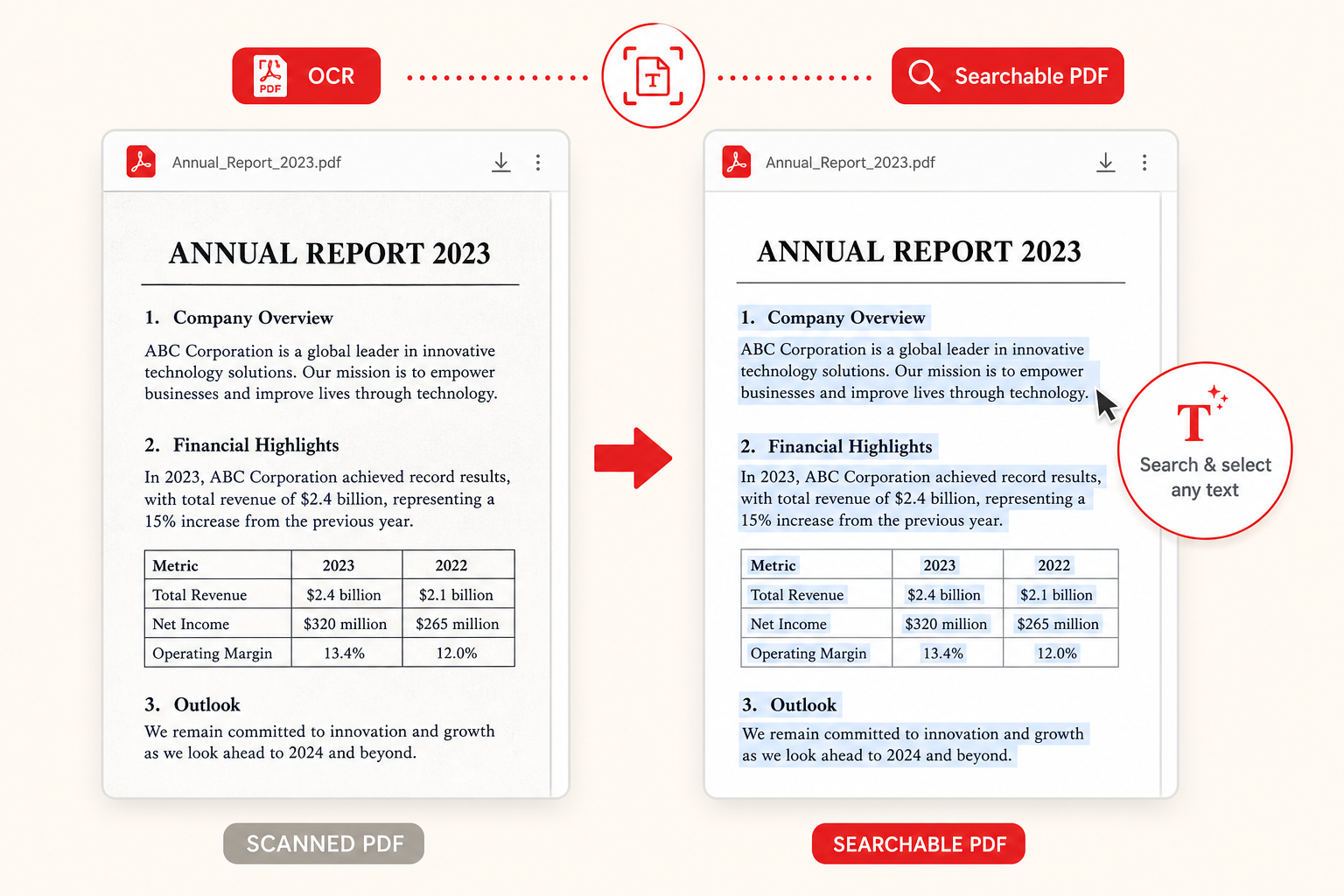
OCR stands for optical character recognition. In practice, it looks at the pixels of a scanned page or photo and tries to map shapes to letters, numbers, and punctuation. Without OCR, a scanned PDF is usually just pictures of pages: you can view and print them, but you cannot select a sentence or search for a word.
After OCR, many tools embed an invisible text layer aligned with the image. You still see the original scan, but Find in your PDF reader can jump to “invoice,” “clause 4,” or a name. Other workflows export plain text or copy results to the clipboard for pasting into email or a spreadsheet.
PDF Scanner exposes OCR for people who already scanned or imported a document and need that text layer or extract. Recognition runs in the browser on your device, so you are not uploading a contract to a remote OCR farm just to search it later.
Image PDF vs searchable PDF
An image-only PDF stores page pictures. File size and print quality can be fine, but accessibility and search are limited. A searchable PDF keeps those pictures and adds machine-readable text. Visually they look alike; behavior differs when you press Cmd/Ctrl+F or try to copy a paragraph.
Not every document needs OCR on day one. A signed one-page permission slip may only need a clear image. A fifty-page policy, a year of receipts, or lecture notes benefit from search. Decide based on whether you will need to find or reuse the words later.
OCR quality depends heavily on the scan. Crisp, high-contrast typed text on a flat page recognizes far better than a dim, skewed photo of crumpled paper. Improving capture often improves OCR more than switching tools.
- Image PDF: view and print, limited search and copy
- Searchable PDF: same look, plus a text layer for find/copy
- Plain text extract: useful when you only need the words
- Better scans produce better OCR—light and focus matter
When OCR works well—and when it struggles
OCR is strongest on clean printed fonts, standard forms, and high-contrast black text on white paper. Straight pages with readable size (roughly 10–12 pt and up in the final image) give engines enough shape information to guess characters confidently.
Handwriting varies widely. Neat block letters may partially convert; cursive and messy notes often produce errors. Tables and multi-column layouts can scramble reading order. Decorative fonts, stamps over text, heavy stains, and low-resolution phone zooms also raise the error rate.
Treat OCR as a helpful draft, not a notary. For legal quotes or financial totals, skim the result against the page image. Fix obvious mistakes before you paste numbers into bookkeeping software. That habit takes a minute and prevents expensive typos.
How to get better OCR results with PDF Scanner
Start with a good scan: even light, phone parallel to the page, full page in frame, no motion blur. Crop margins and fingertips so the recognizer spends effort on text, not table grain. Enhance when the page looks gray so ink stands out from paper.
Open your PDF or scan in PDF Scanner and use the extract-text / OCR path when you need selectable or searchable content. Keep the work on your device—files never leave your device for this browser-based processing. Review the output, then save a searchable PDF or copy the text you need.
For multi-page packs, consistent capture helps the whole file. Mixed dark and bright pages create uneven recognition. If one page fails, retake that page rather than reprocessing a soft original repeatedly.
- Capture sharp, high-contrast pages before running OCR
- Crop tightly; enhance faded ink when needed
- Run OCR in PDF Scanner locally in the browser
- Proofread critical numbers and names after recognition
Privacy: why on-device OCR matters
Many online “extract text” sites ask you to upload a PDF, run recognition in the cloud, then let you download results. That is convenient for some public documents, but a poor default for tax forms, medical letters, or HR files. You should know where the bytes went.
PDF Scanner’s approach keeps OCR in the browser on your hardware. Your scan does not need to leave the phone or laptop for recognition to complete. You still choose whether to email or store the finished file—sharing is intentional, not a side effect of processing.
Privacy does not replace good judgment. Lock your device, use strong account security on email, and avoid sending searchable PDFs to the wrong recipient. Local OCR removes one unnecessary handoff; it does not make a shared link private forever.
Practical uses: search, copy, and archives
Searchable archives turn a folder of scans into something you can query. Finding “deductible” in an insurance PDF or a vendor name across receipts is faster than opening every file. Students use OCR to pull quotes from photocopied chapters; offices use it to reuse addresses without retyping.
Copy-paste from OCR is ideal for short passages. For long reformatting jobs, paste into a document and clean spacing. Line breaks from narrow columns are normal—quick edits usually fix them.
Pair OCR with solid file names and folders. Recognition helps inside a file; organization helps across hundreds of files. Together they make phone scans useful months later instead of becoming Downloads clutter.
Frequently asked questions
What does OCR stand for?
Optical character recognition. It converts shapes in a scanned image into machine-readable characters so you can search, select, and copy text from a PDF that started as a photo of a page.
Is OCR the same as a searchable PDF?
OCR is the process. A searchable PDF is a common result: the original page images plus an invisible text layer. You can also extract plain text without saving a new PDF, depending on the tool.
Does PDF Scanner upload my file to run OCR?
No. OCR in PDF Scanner runs in the browser on your device. Your files never leave your device for that processing step.
Why is my OCR full of mistakes?
Usually the scan is soft, skewed, low-contrast, or handwritten. Retake with better light and focus, crop tightly, enhance if needed, then run OCR again. Always proofread critical values.