Searchable PDF guide: find text inside your scans
How to turn image-only scans into searchable PDFs you can find, copy from, and archive—using private OCR in PDF Scanner.
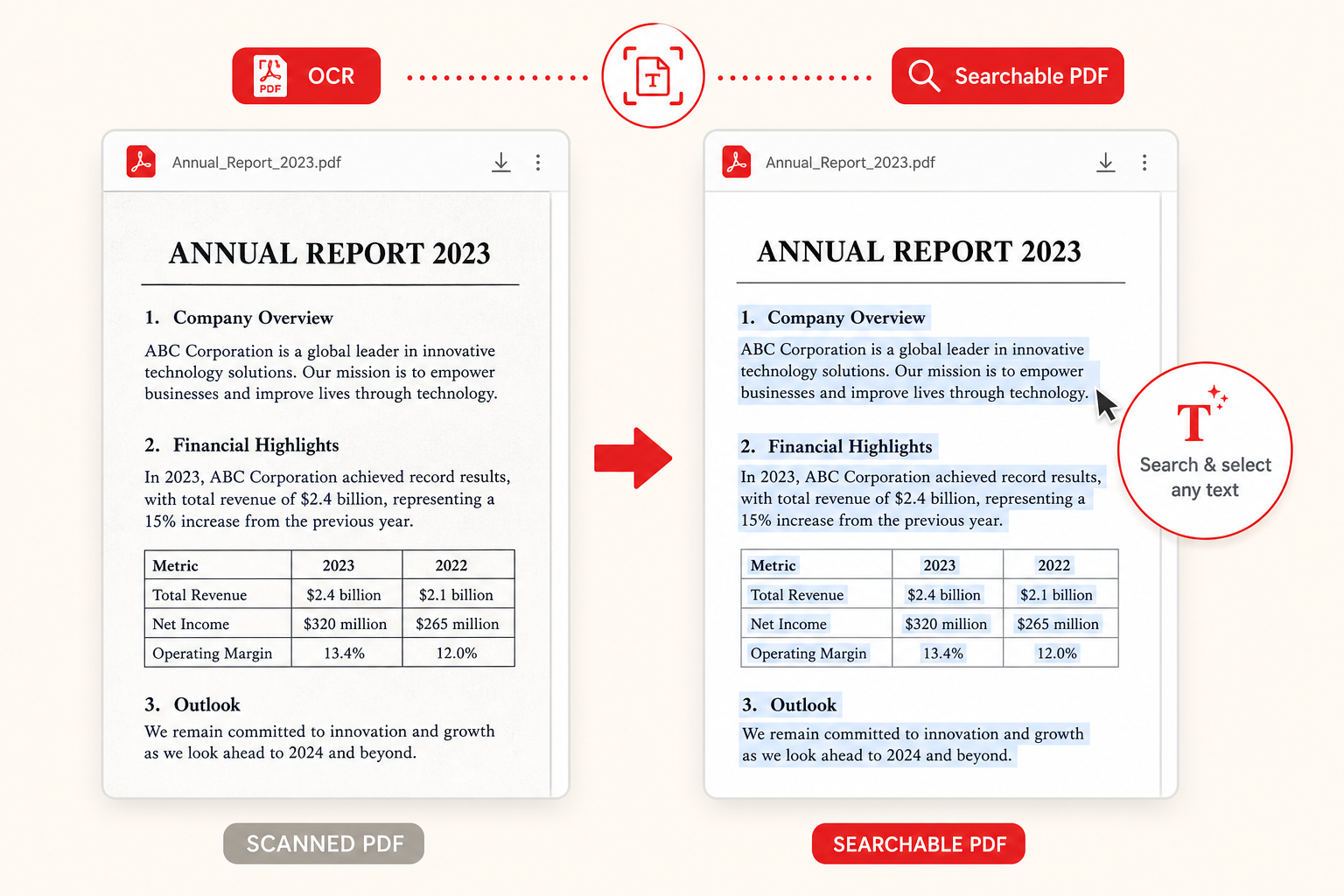
What “searchable” means in a PDF
A searchable PDF looks like any other scan when you open it: you see the page image, stamps, signatures, and letterhead. Underneath, a text layer lets PDF readers match keywords. Press find, type a word, and the viewer highlights matches the way it would in a Word file.
Without that layer, find fails even when you can clearly read the page with your eyes. The computer only has pixels. Searchable PDFs bridge that gap after OCR maps characters to positions on each page.
People want searchable files for archives, discovery, and reuse. Lawyers look for clause language. Accountants hunt invoice numbers. Students search lecture handouts. The common need is the same: stop opening twenty files to find one sentence.
When you need a searchable PDF (and when you don’t)
Create a searchable PDF when you expect to query the file later, copy passages, or keep a long-term archive. Multi-page contracts, research packets, and expense bundles repay the OCR step many times over.
Skip OCR when the PDF is only a visual record—for example, a single signed page you will submit once and never search. Image-only is smaller in some cases and perfectly fine for print-and-done workflows.
If someone else must fill or sign digitally, searchable text helps, but form fields are a different feature. Searchability is about finding and selecting words, not about interactive AcroForm fields. Know which problem you are solving.
- Need find/copy later → make it searchable
- One-time visual proof → image-only may be enough
- Critical numbers → searchable plus human proofread
- Huge archives → searchable + clear file names
How to make a searchable PDF with PDF Scanner
Start with a clean scan or photo set. Use the document scanner or photos-to-PDF path at pdfscan.online so pages are upright, cropped, and readable. Uneven lighting and blur are the main reasons find later misses words that are obvious to you.
Run OCR through PDF Scanner’s extract-text tools to build searchable text from those pages. Processing stays in the browser on your device—your files never leave your device for recognition. Save or download the searchable result when the preview looks right.
Open the PDF in your usual reader and test find with a distinctive word from the middle of the document. If that word fails, check whether you opened the old image-only file by mistake, or retake soft pages and run OCR again.
- Scan or import pages with good contrast and focus
- Crop and enhance before OCR when pages look muddy
- Run on-device OCR in PDF Scanner
- Verify with find before you archive or share
Accuracy, fonts, and layouts
Printed body text in a common font usually converts cleanly. Tiny footnotes, fax artifacts, and stamped overlays cause more errors. Multi-column magazines may read top-to-bottom in an order that surprises you when you copy a paragraph—skim the selection before pasting into a report.
Tables often survive as text but lose perfect column alignment. For spreadsheet work, consider copying into a sheet and re-aligning headers. For search, imperfect table text is still useful if vendor names and totals are correct.
Handwritten annotations next to typed contracts can confuse recognition around those regions. The typed body may still search fine. Do not assume a signature becomes a typed name—signatures are graphics, not reliable OCR targets.
Organizing searchable archives
Search inside a file is powerful; search across a mess of “Document (3).pdf” names is still painful. Use dates and short topics in filenames: 2026-07-lease-renewal.pdf beats scan_final_final.pdf. Folders by year or project keep volume manageable.
Decide whether every page needs OCR. Sometimes only the first summary page matters for search, and the rest can stay visual. Be consistent so future you knows what to expect in each folder.
Because PDF Scanner keeps OCR local, you can process sensitive archives without sending them through an upload portal. That makes bulk cleanup of old phone scans more realistic for personal tax or medical paperwork you prefer to keep close.
Sharing and accessibility notes
Searchable text also helps accessibility tools that read documents aloud, though results vary by reader and how clean the OCR layer is. Clear scans with real text layers generally outperform pure images for screen readers.
When you share externally, remember the text layer includes whatever OCR believed it saw—including mistakes. For formal delivery, spot-check names and figures. If a page is confidential, share through channels you trust; searchability does not encrypt the file.
If a recipient complains they cannot find text, ask which app they use and confirm they opened your searchable export. Some viewers handle text layers differently, but most modern readers on phone and desktop support standard searchable PDFs.
Frequently asked questions
How do I know if a PDF is already searchable?
Open it and try to select a line of typed text or use find for a word you can see on the page. If selection and find work, a text layer is present. If you can only select the whole page as an image, it is likely image-only.
Can I make an old phone scan searchable?
Yes—if the image is sharp enough. Import the PDF or photos into PDF Scanner, improve crop and contrast if needed, then run OCR. Very blurry originals may need a rescan for reliable results.
Does creating a searchable PDF upload my document?
Not with PDF Scanner. OCR and PDF processing run in your browser on-device, so your files never leave your device for those steps.
Will find match handwritten notes?
Sometimes for neat print handwriting, often not for cursive. Typed text is the reliable case. Treat handwritten OCR matches as hints and verify against the page image.